




Phone Storage Full? 10 Safe Fixes for Android and iPhone
When your phone warns that storage is full, start by checking which category uses the most space. Reclaim gigabytes safely by clearing temporary app cache, removing large messaging attachments and offline downloads, and verifying cloud backups before deleting local photos.
On this page14
- How Do You Check What Is Using Your Phone Storage?
- What Are the 10 Best Fixes for a Full Phone?
- 1. Clear App Cache (Without Erasing App Data)
- 2. Uninstall or Offload Apps You Rarely Use
- 3. Clean Large WhatsApp and Messaging Attachments
- 4. Back Up Photos and Videos, Then Free Up Local Space
- 5. Empty Your Downloads Folder
- 6. Remove Offline Maps, Podcasts, Music, and Videos
- 7. Merge Duplicate Photos and Delete Old Screen Recordings
- 8. Clear Browser Cache Selectively
- 9. Move Large Videos to an SD Card, USB-C Drive, or Computer
- 10. Factory Reset Only as an Absolute Last Resort
- Why Didn't My Free Space Increase After Deleting Files?
- 5-Minute Monthly Phone Storage Checklist
How Do You Check What Is Using Your Phone Storage?
Before deleting anything, open your phone's built-in storage dashboard. It breaks usage down into apps, photos and videos, messaging media, downloads, and system files so you can target the biggest culprit first.
| Category | Usually Safe After Review | Never Delete Casually | Expected Space Freed |
|---|---|---|---|
| App Cache & Data | Temporary cache via Clear cache on Android or in-app cache controls | Clear storage / Clear data (wipes logins, local chats, and offline saves) | 500 MB – 5 GB+ |
| Messaging Media | Forwarded videos, voice notes, and large files in WhatsApp Manage Storage | Entire chat threads containing family photos, work PDFs, or receipts | 1 GB – 15 GB+ |
| Photos & Videos | Duplicate bursts, old screen recordings, and verified cloud-backed copies | Original camera roll videos before confirming cloud backup is 100% complete | 3 GB – 30 GB+ |
| Downloads & Offline Media | Watched Netflix/YouTube offline videos, old PDFs, and offline maps | Authenticator recovery codes, identity PDFs, or active travel tickets | 1 GB – 10 GB+ |
What Are the 10 Best Fixes for a Full Phone?
Work from the safest, lowest-risk steps toward deeper cleanups. You do not need to complete all 10—stop as soon as your phone has comfortable breathing room (ideally at least 10% to 15% free space).
1. Clear App Cache (Without Erasing App Data)
Social media, browsers, and streaming apps store gigabytes of temporary thumbnails and cached clips. On Android, open Settings > Apps > [App Name] > Storage and tap Clear cache—never tap Clear storage or Clear data unless you want to reset the app completely. On iPhone, iOS does not offer a universal cache button for every app, so check inside apps like TikTok, Telegram, or Spotify for an in-app Clear Cache setting. Skip third-party 'phone cleaner' apps that demand broad permissions.
2. Uninstall or Offload Apps You Rarely Use
Mobile games and editing apps often consume 2 GB to 10 GB each. On Android, open Settings > Apps, sort by size, and uninstall apps you no longer use (or enable app archiving in Google Play Store settings to keep your personal data). On iPhone, go to Settings > General > iPhone Storage, select a heavy app, and tap Offload App—this removes the bulky app binary while keeping your documents and save data safely on the phone.
3. Clean Large WhatsApp and Messaging Attachments
Instead of deleting entire conversations, review media sorted by file size. Open WhatsApp > Settings > Storage and data > Manage storage. Check the 'Larger than 5 MB' and 'Forwarded many times' sections, preview items before selecting them, and delete only the videos you do not need. On iPhone, you can also review Settings > General > iPhone Storage > Messages to clear huge iMessage video attachments.
4. Back Up Photos and Videos, Then Free Up Local Space
4K videos fill phone storage faster than almost anything else, but never delete camera roll originals until you verify your backup is complete. Remember that cloud storage and device storage work differently: manually deleting a photo inside Google Photos or Apple Photos while sync is turned on will also delete it from your cloud library across all devices.
5. Empty Your Downloads Folder
Old PDFs, installer packages, and downloaded clips quietly pile up over months. On Android, open the Files by Google (or My Files) app, tap Downloads, sort by largest first, and remove files you no longer need. On iPhone, open the Files app and check both On My iPhone > Downloads and iCloud Drive > Downloads.
6. Remove Offline Maps, Podcasts, Music, and Videos
Offline playlists, watched Netflix or YouTube episodes, and downloaded Google Maps regions can quietly occupy 10 GB or more. Open the specific streaming, podcast, or navigation app, navigate to its Downloads or Offline section, and remove finished media inside the app.
7. Merge Duplicate Photos and Delete Old Screen Recordings
On iPhone, open Photos > Albums (or Collections) > Utilities > Duplicates to review and merge exact copies safely, then check the Screen Recordings album. On Android, use the Clean tab in Files by Google or your built-in gallery tools to review duplicate images and old screenshots. Afterwards, empty the Recently Deleted or Trash folder so the space is reclaimed immediately.
8. Clear Browser Cache Selectively
Mobile browsers cache thousands of images and scripts over time. Clear cached images and files while keeping saved passwords and essential cookies intact so you do not lock yourself out of accounts.
9. Move Large Videos to an SD Card, USB-C Drive, or Computer
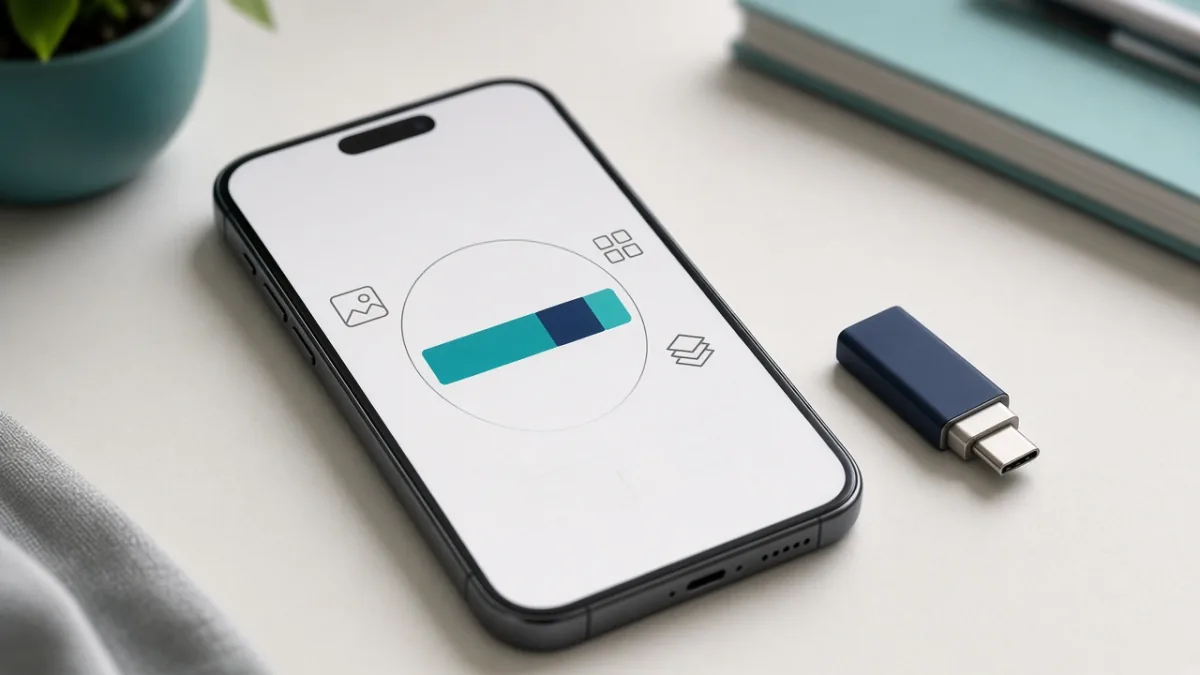
If you shoot long videos and prefer not to pay for cloud subscriptions, transfer them to physical storage. On Android phones with a microSD slot, move media folders via your file manager, open a few transferred files to confirm they play properly, and then delete the internal copies. On iPhone or modern Android devices with USB-C, plug in an external SSD or connect to your computer, copy the video folders, verify the copies, and then delete the phone originals.
10. Factory Reset Only as an Absolute Last Resort
If Corrupt System Data occupies most of your phone and none of the nine fixes above helped, a full backup followed by a factory reset can rebuild the storage partition cleanly. Never reset your phone before backing up photos, chats, contacts, and two-factor authenticator (2FA) recovery codes.
Why Didn't My Free Space Increase After Deleting Files?
If you deleted gigabytes of videos and your available storage barely moved, check the Recently Deleted or Trash album inside your Photos app, File Manager, and Voice Memos—deleted items usually sit in trash for 30 days and still count against your storage until permanently emptied. Finally, restart your phone once so the operating system recalculates the storage index.
5-Minute Monthly Phone Storage Checklist
Check off these five quick habits once a month so you never see a 'Storage Almost Full' warning right when you need to take a photo or install an update:
Frequently Asked Questions
What is the fastest phone storage full fix?
Start by deleting large watched offline videos (in Netflix, YouTube, or Spotify), removing items over 5 MB in WhatsApp's Manage Storage tool, and emptying your Downloads and Recently Deleted folders. These three steps routinely free several gigabytes in under five minutes without risking important personal data.
Does clearing app cache delete my photos or messages?
No—clearing an app's cache only removes temporary files used to load content faster. Just make sure on Android that you tap Clear cache rather than Clear storage or Clear data, as clearing data resets the app and removes local logins and unsynced chats.
Why is my iPhone storage full when I still have plenty of iCloud space?
iCloud storage and physical iPhone storage are separate. If your iPhone is keeping full-resolution originals locally, open Settings > [Your Name] > iCloud > Photos and enable Optimize iPhone Storage so your phone replaces heavy local files with smaller device-sized versions while keeping originals in iCloud.
Can I delete WhatsApp videos without deleting my chat history?
Yes. Open WhatsApp > Settings > Storage and data > Manage storage. From there you can preview and delete large videos or forwarded attachments while keeping all your text conversations intact.
Are third-party phone cleaner apps safe to use?
You do not need third-party cleaner apps. Both Android (via Settings and Files by Google) and iOS (via iPhone Storage and Photos Utilities) include safe built-in cleanup tools. Avoid unfamiliar cleaner apps that request full file access or show aggressive scareware ads.
Should I factory-reset my phone to free up storage?
Treat a factory reset strictly as a last resort when corrupted System Data cannot be cleared any other way. Always try clearing downloads, messaging media, app caches, and verified photo backups first, and confirm your 2FA authenticator apps are backed up before resetting.
Sources
Tags: AndroidiOSTroubleshootingCloud StorageBackupHow-To