Cloud Gaming Basics: How It Works, Internet Speed Needed & How to Cut Lag
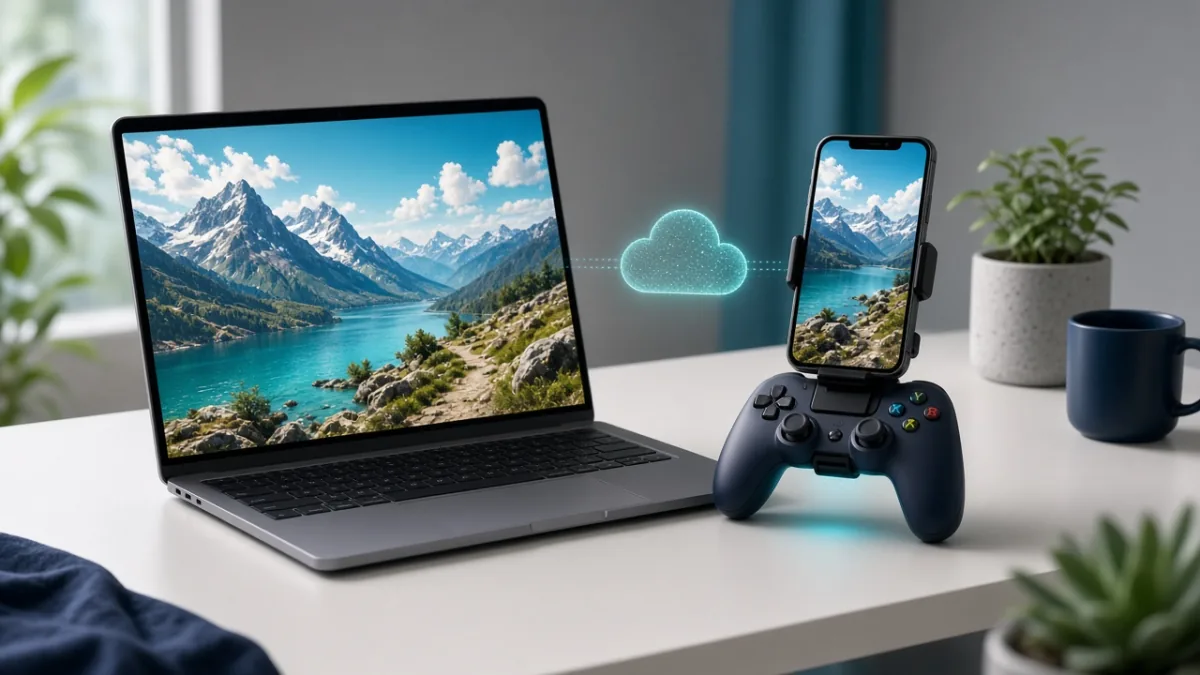
Cloud gaming runs demanding PC and console titles on a remote data-center server and streams the live video and audio to your phone, tablet, laptop, or TV while sending your controller inputs back in real time. Instead of needing an expensive graphics card or 100 GB of free storage, your experience depends on low ping, zero packet loss, and a stable wired or 5 GHz Wi-Fi connection.
On this page5
What You Need for Smooth Cloud Gaming (Connection Checklist)
Unlike Netflix or YouTube—which can pre-load several seconds of video buffer—cloud gaming is a two-way interactive stream where every button press must travel to the server and return a new frame within milliseconds. Check your home network against these requirements before subscribing:
| Network Factor | Recommended Target | Why It Matters for Cloud Gaming | How to Improve It |
|---|---|---|---|
| Download Speed | 15 Mbps for 720p; 20–25 Mbps for 1080p at 60 FPS; 35–45 Mbps for 1440p/4K | Carries the compressed live video and audio stream to your screen | Pause background game downloads or 4K video streams on other household devices |
| Latency (Ping) | Under 40 ms (under 20 ms feels nearly native) | Determines the delay between pressing a controller button and seeing the action | Connect to the closest regional server and turn off VPNs while playing |
| Packet Loss & Jitter | 0% packet loss and minimal jitter (< 5 ms) | Dropped packets cause sudden screen freezes, blocky artifacts, and missed inputs | Use an Ethernet cable or sit in the same room as a 5 GHz / Wi-Fi 6 router |
| Connection Type | Wired Ethernet first; 5 GHz or 6 GHz Wi-Fi second | 2.4 GHz Wi-Fi suffers heavy interference from walls, microwaves, and Bluetooth | Plug a USB-C Ethernet adapter into your laptop or switch your phone to the 5 GHz band |
| Data Cap Allowance | Roughly 4 GB to 10+ GB per hour depending on resolution | Continuous high-bitrate streaming burns through capped mobile or home plans quickly | Play on unlimited home broadband or lower the stream resolution to 720p on capped plans |
Cloud Gaming vs. Local Gaming vs. Remote Play
Beginners often mix up cloud gaming with console Remote Play. Here is how the three approaches differ:
How Much Internet Data Does Cloud Gaming Use Per Hour?
Because cloud gaming streams high-frame-rate video non-stop, it consumes significantly more data than standard multiplayer gaming (which only sends tiny position coordinates). For example, a stream running at an average bitrate of 20 Mbps transfers roughly 9 GB of data per hour (20 megabits × 3,600 seconds ÷ 8 bits per byte = 9,000 MB). Playing two hours a day at 1080p/60fps can easily use 500 GB+ per month—so always check your ISP cap and avoid playing over limited mobile data.
How to Test Your Connection & Set Up Cloud Gaming in 5 Steps
- Check regional availability and device support: Confirm that the cloud service officially supports your country, device (Windows, Mac, Android, iPhone/iPad via browser, or Smart TV), and controller before paying.
- Run the provider's built-in network test during peak evening hours: Measure your ping, jitter, and packet loss to the actual gaming data center at 8 PM when household internet traffic is busiest.
- Pair a low-latency controller: Connect an Xbox, PlayStation DualSense, or telescopic mobile controller via USB cable (lowest lag) or Bluetooth.
- Test a free tier or demo session first: Launch a fast-paced game to check whether button presses feel immediate and whether the image stays crisp during fast camera turns.
- Fine-tune stream bitrate and resolution: Inside the cloud app's settings, cap the bitrate or switch from 1080p to 720p if you notice occasional network stutter or have a monthly data limit.
How to Fix Cloud Gaming Lag, Blurry Video & Input Delay
| Problem | Root Cause | Fastest Fix |
|---|---|---|
| Noticeable delay between pressing a button and on-screen action | High ping to the data center, active VPN routing, or Bluetooth controller interference | Turn off any VPN, wire your controller via USB, and select the nearest server region |
| Image suddenly turns blurry, pixelated, or blocky | Bandwidth drop or Wi-Fi congestion triggering adaptive bitrate compression | Switch from 2.4 GHz to 5 GHz Wi-Fi (or Ethernet) and pause downloads on other devices |
| Audio crackles and frames freeze every few seconds | Packet loss or high jitter through walls or a crowded router channel | Move into the same room as the router, restart the router once, and close background browser tabs |
Frequently Asked Questions
Is 20 Mbps fast enough for cloud gaming?
Yes, 20 to 25 Mbps is enough for a single 1080p at 60 FPS cloud gaming stream on most platforms, provided nobody else on your Wi-Fi is downloading large files. However, low ping (under 40 ms) and zero packet loss are just as important as raw download speed.
Does cloud gaming use a lot of internet data?
Yes. Depending on resolution and bitrate, cloud gaming typically uses between 4 GB and 12 GB of data per hour—for example, a steady 20 Mbps stream uses about 9 GB per hour. Always use an unlimited Wi-Fi or wired broadband plan rather than capped mobile data.
Can I play AAA games on an old laptop or budget phone with cloud gaming?
Yes. Because the remote server handles all CPU and GPU rendering, any budget laptop, Chromebook, Android phone, or iPhone that can smoothly decode a 60 FPS video stream and connect a controller can run demanding titles.
Is cloud gaming good for competitive multiplayer shooters?
Single-player adventures, RPGs, strategy games, and casual co-op games work great on cloud gaming. Fast competitive esports shooters are much less forgiving because your inputs have to travel to the cloud server and back before you see the frame.
Do I need to buy games separately on a cloud gaming service?
It depends on the service model. Subscription-library services (like Xbox Cloud Gaming) include a rotating catalog of games in your monthly fee, while 'play-your-own-games' services (like NVIDIA GeForce NOW) rent you a cloud PC to stream supported games you already own on Steam, Epic, or PC Game Pass.
Should I use a VPN while cloud gaming?
No. Routing a live cloud gaming stream through a VPN adds extra distance, encryption overhead, and latency (ping), which causes noticeable input lag and blurry video.
Sources
Tags: GamingMobile GamingWi-FiCloud StorageTroubleshootingHow-To