

PC Gaming Graphics Settings Explained: What to Lower First for Higher FPS
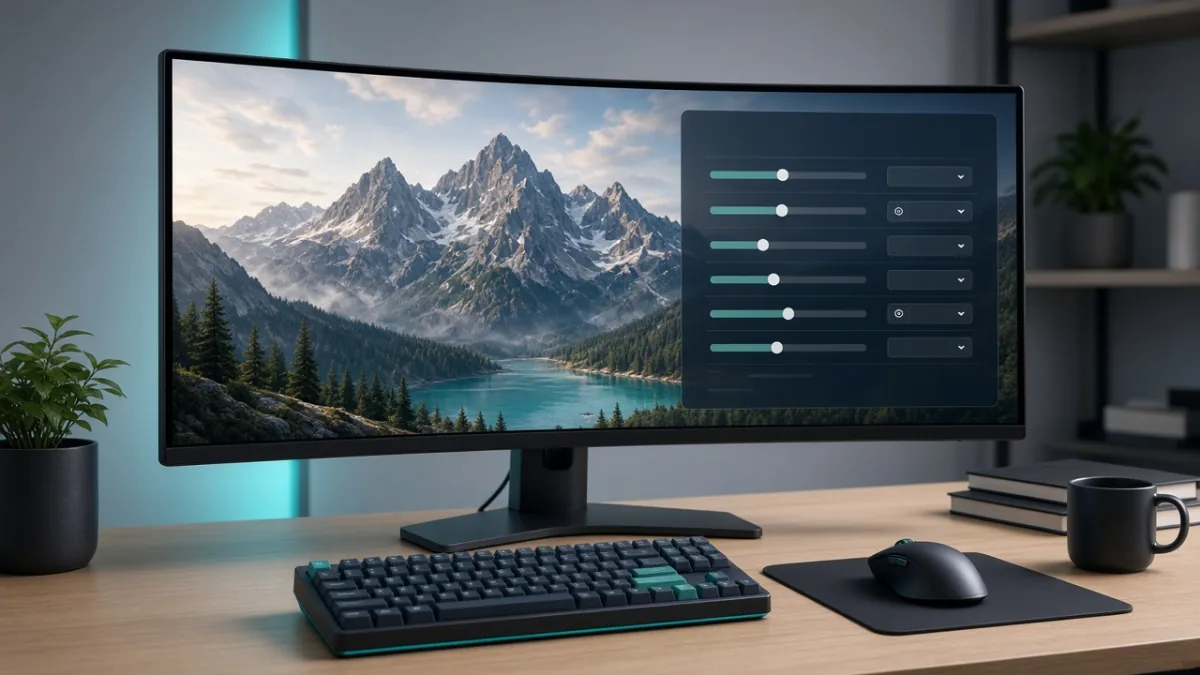
If a PC game stutters or runs at a low frame rate, you do not need to set every graphics slider to Low and make the game look blurry. By turning off or lowering the heaviest GPU hogs first—such as Ray Tracing, Ultra Shadows, and Volumetric Fog—while keeping native resolution and high textures (as long as your VRAM allows), you can boost FPS dramatically with almost no visible loss in sharpness.
On this page5
Every Major PC Graphics Setting Explained (Impact & Best Preset)
Different settings tax different parts of your PC—some hammer the GPU cores, some fill up video memory (VRAM), and others stress the CPU. Use this reference table to see what each option changes and where to set it first:
| Graphics Setting | What It Controls | Typical FPS Impact | Recommended Starting Preset |
|---|---|---|---|
| Ray Tracing / Path Tracing | Real-time simulated lighting, reflections, and global illumination | Very High (often cuts FPS by 30–50%) | Off for maximum FPS; Medium with DLSS/FSR Quality on capable GPUs |
| Shadow Quality | Sharpness, resolution, and draw distance of cast shadows | High | Medium (looks nearly identical to Ultra during actual gameplay) |
| Volumetric Fog, Clouds & Lighting | Light shafts, mist density, and atmospheric scattering | Medium to High | Medium or Low—one of the easiest ways to gain 10–15% more FPS |
| Resolution & Resolution Scale | Total pixels rendered per frame (e.g., 1080p, 1440p, 4K) | Very High | Keep your monitor's native resolution at 100% scale; use DLSS/FSR before lowering resolution |
| Texture Quality | Surface crispness on walls, armor, skin, and terrain | Low raw FPS cost, High VRAM usage | High if you have 8 GB+ VRAM; Medium/Low on 4–6 GB VRAM cards to prevent stuttering |
| Anisotropic Filtering (AF) | Sharpness of ground textures viewed at an angle | Almost Zero on modern GPUs | Keep at 8x or 16x for much clearer roads and floors |
| Screen-Space Reflections (SSR) & Ambient Occlusion | Puddle/window reflections and subtle contact shading in corners | Medium | Medium; drop to Low if crowded city or indoor scenes lag |
| View Distance / Crowd Density | How far objects render and how many NPCs appear at once | Medium to High (heavily taxes the CPU) | Medium in open-world games if busy towns cause frame drops |
| Anti-Aliasing (TAA, SMAA, FXAA, MSAA) | Smooths jagged stair-step edges on objects | Low for TAA/FXAA; High for MSAA | Use TAA or SMAA (or let DLSS/FSR/XeSS handle anti-aliasing automatically) |
| Motion Blur, Film Grain & Depth of Field | Cinematic camera blur and post-processing filters | Low | Off for clearer visibility in action and competitive games |
The 6 Settings to Lower First When Your Game Lags
Instead of clicking the 'Low' master preset—which makes textures muddy and distant objects pop in—lower these six settings in exact order until you hit your target frame rate:
- Turn off Ray Tracing first: Unless you have a high-end GPU and upscaling enabled, disabling ray-traced reflections and shadows yields the largest single frame-rate jump.
- Drop Shadows from Ultra to Medium: Ultra shadows render crisp leaf edges hundreds of meters away that you rarely notice in motion.
- Lower Volumetric Fog, Clouds, and Sky Quality: Atmospheric effects consume heavy shader power; Medium or Low looks clean and frees up significant GPU headroom.
- Turn on Upscaling (DLSS, FSR, or XeSS) in Quality mode: Instead of dropping a 1440p or 1080p monitor to a blurry non-native resolution, use your supported upscaler on Quality or Balanced.
- Reduce Screen-Space Reflections and Ambient Occlusion one notch: Moving both from Ultra to Medium smooths out rainy or neon-lit scenes.
- Lower View Distance and Crowd Density in open-world cities: If your frame rate tanks only inside towns with lots of NPCs, your CPU is the bottleneck—reducing crowd density and object draw distance helps immediately.
DLSS vs. FSR vs. XeSS: Which Upscaler Should You Use?
Modern upscalers render the game world at a lower internal resolution and reconstruct a sharp final image while keeping your HUD and text at native resolution:
How to Tune Any PC Game Step by Step in 5 Minutes
- Confirm Windows display refresh rate first: Open Windows Settings > System > Display > Advanced display and make sure your 120 Hz, 144 Hz, or 165 Hz monitor is not accidentally running at 60 Hz.
- Enable an FPS counter and pick one test scene: Turn on the Steam, NVIDIA, or AMD FPS overlay and stand in a demanding outdoor or city scene.
- Start from the 'High' or 'Medium' preset at native resolution: Never start from 'Ultra,' which is designed for screenshots rather than cost-effective gameplay.
- Change one heavy setting at a time: Lower Ray Tracing, Shadows, or Volumetrics, unpause the game for 15 seconds, and check whether your FPS and frame pacing improved.
- Check VRAM usage before raising Textures: If the game menu shows a VRAM bar, stay comfortably below the limit so the game never stutters when spinning the camera.
Is Your Slowdown Caused by the GPU, CPU, or VRAM?
| Symptom During Gameplay | Likely Hardware Bottleneck | Which Settings Fix It |
|---|---|---|
| FPS is consistently low everywhere, and lowering resolution immediately boosts FPS | GPU Core Bottleneck (GPU usage near 95–100%) | Enable DLSS/FSR/XeSS, turn off Ray Tracing, and lower Shadows, Volumetrics, and Reflections |
| Lowering resolution or graphics from High to Low barely changes FPS, especially in crowded towns | CPU Bottleneck | Lower Crowd Density, View/Object Distance, Physics, and close background browser tabs or overlays |
| Average FPS looks high, but the game freezes for half a second when turning the camera or entering new areas | VRAM or System RAM Full | Drop Texture Quality one level (e.g., Ultra to High/Medium) and close memory-heavy apps like Chrome |
Frequently Asked Questions
Which PC graphics settings lower FPS the most?
Ray Tracing, Shadow Quality, Volumetric Fog/Lighting, Resolution Scale, and Screen-Space Reflections typically consume the most GPU performance. Lowering those options from Ultra to Medium often boosts FPS by 25–50% with very little visual loss.
Should I lower my display resolution or graphics quality first?
Always lower heavy visual effects (Ray Tracing, Shadows, Volumetrics) or turn on an upscaler (DLSS, FSR, or XeSS in Quality mode) before dropping your monitor's display resolution. Lowering output resolution below native makes menus, text, and edges look blurry.
Does Texture Quality affect FPS?
Texture Quality barely affects average FPS as long as your graphics card has enough video memory (VRAM) to hold the textures. However, if Ultra or High textures exceed your GPU's VRAM limit, you will experience severe stuttering and hitching when turning the camera.
What is the difference between FPS and monitor refresh rate (Hz)?
FPS (frames per second) is how many frames your PC renders each second, while refresh rate (Hz) is how many times per second your monitor updates the screen. To actually see 120+ FPS smoothly, you need both a PC rendering those frames and a 120 Hz+ monitor configured in Windows display settings.
Should I use DLSS, FSR, or XeSS?
If you have an NVIDIA RTX graphics card and the game supports it, choose DLSS Quality first. If you have an AMD Radeon or older GTX card, use FSR Quality or Intel XeSS Quality and compare which one looks cleaner in motion.
Why does my game still stutter even when my average FPS is high?
High average FPS with sudden micro-stutters is usually caused by full VRAM (lower Texture Quality one step), background shader compilation after a driver update, CPU bottlenecks in crowded areas, or background apps competing for RAM.
Sources
Tags: GamingSettingsTroubleshootingHow-ToStep-by-Step