




What Is Two-Factor Authentication? How 2FA Works
Two-factor authentication requires two distinct types of evidence to verify your identity. Understanding how it works helps you choose the right method and protect your recovery options.
On this page22
- How Does Two-Factor Authentication Work?
- The Three Authentication Factor Categories
- 2FA vs. MFA vs. Two-Step Verification
- Common Two-Factor Authentication Methods
- SMS Verification Codes
- Authenticator Apps
- Push Notifications
- Passkeys
- Hardware Security Keys
- Which Authentication Method Should You Choose?
- How to Enable Two-Factor Authentication
- What Happens If You Lose Your Phone?
- Common 2FA Mistakes and Security Risks
- Frequently Asked Questions
- Is two-factor authentication necessary?
- Is SMS-based 2FA safe?
- Is an authenticator app better than SMS?
- Can 2FA stop phishing?
- What is the difference between 2FA and MFA?
- What happens if I lose my phone?
- Are passkeys the same as 2FA?
- Conclusion
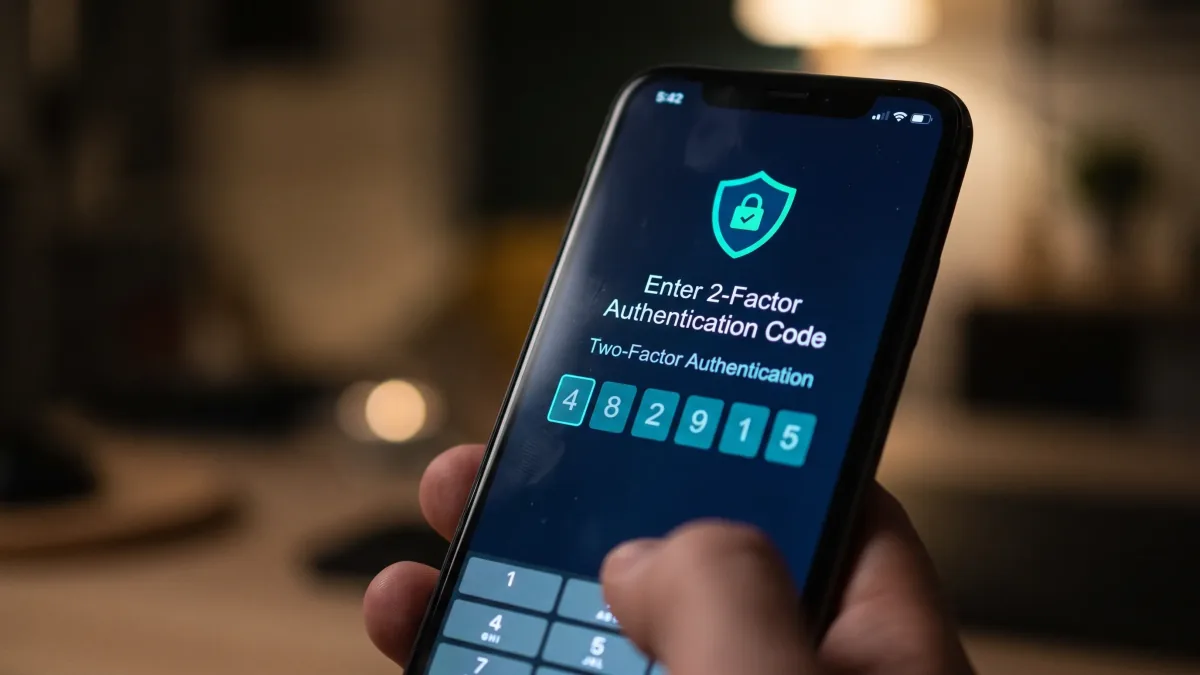
Two-factor authentication (2FA) is a security method that requires two distinct types of evidence to verify your identity when signing in to an account. Instead of relying only on a password, a service may also require a code, an approved sign-in request, or another supported authenticator. This additional protection can stop many account-takeover attempts that rely on stolen passwords.
How Does Two-Factor Authentication Work?
A traditional password-based 2FA login normally follows these steps:
- You enter your username and password.
- The service verifies your credentials.
- The service requests a second form of authentication.
- You provide the code, approve the request, or use the registered authenticator.
- The service grants access if the required checks succeed.
For example, imagine signing in to your email account on a new computer. You enter your password, then open an authenticator app to retrieve a temporary verification code. The password demonstrates knowledge of a secret; the code demonstrates access to a registered authenticator.
An attacker who obtains your password may still be unable to sign in without the additional authentication method. However, 2FA does not guarantee that an account cannot be compromised. Phishing, malicious software, stolen sessions, weak recovery processes, and other attacks can still create risks.
The Three Authentication Factor Categories
Authentication factors are commonly divided into three categories. The difference matters because 2FA requires two distinct factors, not merely two pieces of information.
Something you know is information you can recall, such as a password or a memorized PIN.
Something you have is an authenticator or device under your control, such as a registered phone, a compatible hardware security key, or a device holding a cryptographic credential.
Something you are is a biometric characteristic, such as a fingerprint or facial recognition, used by a compatible authentication system.
Consider the difference between entering a password followed by another password and entering a password followed by a verification generated by a registered authenticator. The first example uses two knowledge-based secrets. It does not constitute two independent authentication factors. The second can combine knowledge and possession, depending on how the service implements its authentication process.
Biometrics also require context. A fingerprint used to unlock a passkey on your phone is generally part of the device's local user-verification process. It does not automatically mean every account sign-in requires a separate biometric step after a password.
2FA vs. MFA vs. Two-Step Verification
These terms are related, but they should not be treated as exact synonyms.
| Term | Meaning |
|---|---|
| Two-factor authentication (2FA) | Authentication using two distinct factors |
| Multi-factor authentication (MFA) | Authentication using two or more distinct factors |
| Two-step verification | A sign-in process with two steps; the factors involved depend on the implementation |
| Passwordless authentication | A sign-in process that does not require a traditional password, potentially using a passkey |
MFA is the broader category, and 2FA is a form of MFA that uses two factors. Two-step verification is a process-oriented term. A provider might use it for a conventional password-plus-code login, but the number of steps alone does not establish whether the underlying factors are independent. Microsoft, for example, uses the term two-step verification for an account-security feature involving separate forms of identity verification.
Passkeys add another distinction. A passkey can replace the password and provide a passwordless sign-in experience. Google explains that a passkey can satisfy the relevant sign-in requirements without a separate second step in its account sign-in flow. Whether a method is presented as 2FA, passwordless sign-in, or a second step depends on the service and configuration.
Common Two-Factor Authentication Methods
Different methods offer different balances of convenience, account recovery, and resistance to phishing.
SMS Verification Codes
SMS authentication sends a temporary code to a registered phone number. You enter the code into the sign-in page to complete verification.
SMS is familiar and broadly supported, making it useful when an account offers few alternatives. However, it is vulnerable to attacks involving phone-number takeover, including SIM swapping, as well as phishing that tricks users into entering codes on fraudulent websites. CISA recommends stronger methods where available.
Authenticator Apps
Authenticator apps generate temporary codes for compatible accounts. Depending on the system, a code may be generated locally without an internet connection or mobile service.
This can reduce reliance on a phone number and help protect against SIM-swapping attacks. However, a one-time code entered into a fraudulent website can still be captured and relayed to the legitimate service. Authenticator codes are useful, but they should not be described as phishing-proof.
Push Notifications
Some services send a sign-in approval request to a registered application. You confirm the request when you recognize that it was initiated by you.
Push notifications can be convenient, but repeatedly receiving approval requests can pressure someone into accepting a fraudulent login. Number matching, in which you confirm a number displayed during sign-in, provides an additional safeguard against mistaken approval. It does not, by itself, make every push-based method phishing-resistant.
Passkeys
A passkey uses public-key cryptography to provide a secure sign-in credential. Instead of typing a conventional password, you may confirm your identity using a device's screen lock, fingerprint, or facial recognition.
Passkeys can replace passwords rather than simply adding another step after one. Their cryptographic design helps protect against phishing because authentication is associated with the legitimate website or service instead of depending on a code that a user could type into a fraudulent site. The exact user experience and recovery options depend on the service and how the passkey is stored or synchronized.
Hardware Security Keys
A hardware security key is a physical authenticator that connects to or communicates with a compatible device. Some keys support standards such as FIDO2 and WebAuthn.
Compatible security-key authentication can provide strong phishing resistance because the authentication protocol binds the credential to the legitimate service. A user who needs stronger protection for valuable accounts should check whether phishing-resistant authentication is supported. Hardware keys also require practical planning: keep an alternative key or another supported recovery method in a secure location when the service permits it.
Which Authentication Method Should You Choose?
There is no single method that is best for every account, device, and recovery situation.
| Method | Main advantage | Main limitation | Practical guidance |
|---|---|---|---|
| SMS codes | Simple and widely supported | Vulnerable to phone-number attacks and phishing | Use when stronger options are unavailable |
| Authenticator app codes | Can work offline and avoids dependence on SMS delivery | Codes can still be phished | A practical option for many everyday accounts |
| Push approvals | Convenient sign-in experience | Unrecognized requests can be approved by mistake | Reject unexpected prompts and use number matching when offered |
| Passkeys | Passwordless convenience and phishing resistance | Availability and recovery depend on service and device support | Prefer for compatible accounts when the arrangement suits your needs |
| Hardware security keys | Strong phishing-resistant authentication | Requires compatible hardware and a recovery plan | Consider for high-value or sensitive accounts |
CISA recommends aiming for phishing-resistant MFA, using security keys or other appropriate phishing-resistant solutions where practical, and treating weaker methods as fallbacks rather than assuming all MFA implementations are equally secure.
For everyday use, enable the strongest method your service supports and that you can reliably maintain. A well-configured authenticator method is generally more useful than leaving an account protected by a password alone. For particularly sensitive accounts, consider passkeys or compatible hardware security keys.
How to Enable Two-Factor Authentication
The precise menu names vary by service, but the general process is straightforward.
- Open the account's official security settings. Navigate directly to the legitimate service rather than following an unexpected link in a message.
- Find the authentication setting. Look for two-factor authentication, two-step verification, MFA, passkeys, or sign-in methods.
- Choose a supported method. Review the available options and select a suitable authenticator.
- Complete the setup instructions. Follow the service's instructions to register the device or authenticator and confirm that it works.
- Save recovery information. Download or record backup codes if the service provides them. Store them securely and separately from the device they help recover.
- Add a fallback method where supported. A secondary authenticator can make recovery easier if your main device becomes unavailable.
- Review recovery options. Make sure your contact information and other account recovery details are current.
For a Google Account, use the official Turn on 2-Step Verification guide at support.google.com/accounts/answer/185839. For a Microsoft account, follow Microsoft's two-step verification instructions. Use each provider's current guidance because account types and available methods can differ.
What Happens If You Lose Your Phone?
Losing your phone does not always mean losing your account, but recovery depends on what you prepared beforehand and which options the service supports.
Possible recovery options include:
Google documents several ways to recover access after losing a primary phone, including previously saved backup codes, another registered phone, a security key, or a passkey on another device. Microsoft also recommends maintaining multiple security-information methods because losing access to one method can complicate account recovery.
Store backup codes somewhere secure and separate from your primary device. A protected password manager or a secure offline location may be appropriate, provided you can access the recovery information when needed. Do not leave your only recovery codes inside the same account that you may be locked out of.
If a device is lost or stolen, use the service's official security controls to revoke its access where possible, review recent sign-ins, and remove compromised authentication methods. Do not assume that every service offers the same recovery process or recovery timeline.
Common 2FA Mistakes and Security Risks
The goal is not simply to turn on another sign-in step. It is to select a suitable authentication method and maintain it in a way that balances security with reliable recovery.
Frequently Asked Questions
Is two-factor authentication necessary?
It is strongly recommended for important accounts, especially email, financial, work, and social media accounts. It adds protection when a password is stolen or exposed. Use the strongest supported method that you can maintain reliably.
Is SMS-based 2FA safe?
SMS-based 2FA is generally better than relying on a password alone, but it is not the strongest available option. Phone-number attacks and phishing can undermine it. Prefer passkeys or compatible phishing-resistant security keys where practical.
Is an authenticator app better than SMS?
Authenticator apps avoid dependence on SMS delivery and phone-number transfers, and some can generate codes offline. However, manually entered codes remain vulnerable to phishing. The best choice depends on the account, the supported options, and your recovery plan.
Can 2FA stop phishing?
Not every form of 2FA can stop phishing. An attacker may trick a user into entering an SMS or authenticator code on a fraudulent website. Passkeys and appropriately implemented FIDO/WebAuthn security-key authentication can provide phishing resistance.
What is the difference between 2FA and MFA?
2FA uses two distinct authentication factors. MFA is the broader category of authentication using two or more distinct factors. A process with two steps is not automatically MFA if both steps rely on the same factor category.
What happens if I lose my phone?
You may be able to use backup codes, another registered device, an alternative authenticator, a security key, a passkey on another device, or the service's account recovery process. Options vary by provider, so prepare your recovery methods before losing access.
Are passkeys the same as 2FA?
No. Passkeys are cryptographic credentials that can replace passwords and provide passwordless sign-in. Their local verification process and the service's implementation determine how the login is handled. A passkey should not automatically be described as a separate second step after a password.
Conclusion
Two-factor authentication makes account access more difficult for attackers who have obtained a password, but the strength of the protection depends on the method used. Choose phishing-resistant authentication when practical, protect your recovery information, and review your important accounts for weaker sign-in options.
Sources
- NIST Digital Identity Guidelines — Authenticators (SP 800-63B)
- NIST Digital Identity Model (SP 800-63)
- CISA — Require Multifactor Authentication
- Google Account Help — Turn on 2-Step Verification
- Google Account Help — Google Authenticator
- Google Account Help — Fix common issues with 2-Step Verification
- Google Account Help — Sign in with a passkey
- Microsoft Support — Two-step verification for your Microsoft account
Tags: Two-Factor AuthPasswordsHow-ToSettings