
How to Use Canva Free: Make Your First Design in 10 Minutes
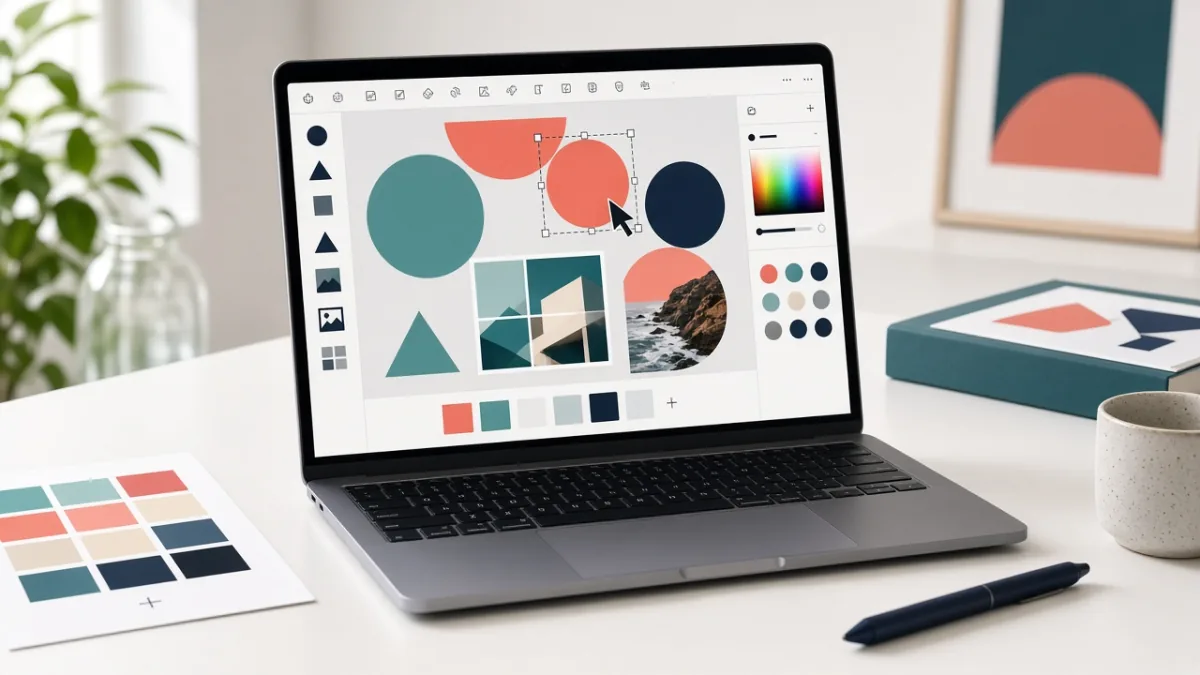
Canva Free lets you create social media posts, flyers, presentations, and posters right in your browser or phone app without learning complex design software. By starting with a free template, sticking to two fonts and high contrast, and replacing any element marked with a Pro crown icon, you can finish and download a polished design in 10 minutes at zero cost.
On this page5
What Can You Make with Canva Free (vs. Paid Plans)?
Canva Free includes thousands of editable templates, free stock photos and icons, uploads for your own images, and standard downloads in PNG, JPG, and PDF. Before clicking any upgrade prompt, check whether you actually need a paid feature or simply clicked a single paid stock element inside an otherwise free layout:
| Design Need / Format | What Canva Free Includes | Pro / Paid Difference | Beginner Workaround on Free Plan |
|---|---|---|---|
| Templates & Stock Assets | Thousands of free layouts, photos, shapes & icons | Elements marked with a crown icon require Pro or one-time license | Filter search or swap any crowned photo with your own upload |
| Brand Colors & Fonts | Pick custom hex colors manually & use free font library | Full multi-palette Brand Kit & custom font uploads | Save a 'Style Guide' page in your project with your 3 hex codes |
| Resizing a Design | Create a new blank canvas at any custom pixel size | One-click Magic Switch / automatic multi-size resize | Open a new design at the target dimensions and copy-paste your elements |
| PNG Download | Included free at standard canvas dimensions | One-click transparent background export | Use PNG for sharp text posts, diagrams & social graphics |
| JPG Download | Included free for compact photo-heavy exports | Custom compression slider controls | Compress large downloaded JPG/PNG files with a free web compressor |
| PDF Standard / Print | Included free for documents, resumes & flyers | CMYK color profile options for commercial offset print | Use PDF Standard for email/web and PDF Print for home or office printing |
How to Create Your First Canva Design in 10 Minutes (6 Steps)
Start with a single square social media post—it teaches you every core tool in the editor without overwhelming you with multi-page layouts:
- Sign in to your free account: Open canva.com in your browser (or the official mobile app) and sign in. Dismiss any optional free-trial pop-ups if you want to stay on Canva Free.
- Choose a free template: Search for 'Instagram Post' or 'Social Media Post' and pick a clean layout that does not show a paid crown badge.
- Edit the headline and text: Double-click the main text box and replace the placeholder words with a short, scannable headline (6 to 10 words max) plus one clear call to action.
- Customize colors, fonts, and photos: Click any shape or text box to change its color from the top toolbar. Upload your own photo via the Uploads tab on the left and drag it into the template frame.
- Check alignment and breathing room: Drag elements slowly until pink alignment guides snap them into center or left alignment, and leave empty margin space around the edges.
- Download and inspect your file: Click Share > Download in the top-right corner, select PNG (or PDF for documents), click Download, and open the saved file on your device to verify every word is sharp.
The 5 Design Rules Every Beginner Should Check Before Downloading
Professional-looking graphics rarely use complicated effects—they simply follow five basic visual rules. Run through this checklist before exporting:
Can You Use Canva Free Designs Commercially?
Canva's Content License Agreement generally permits using original designs you create with Free elements for business marketing, social media accounts, client presentations, and websites. However, three strict rules apply: (1) You cannot resell or redistribute a stock photo, icon, or unaltered template on its own (for example, selling a stock illustration as a standalone digital file); (2) You cannot register a trademark on a logo that uses pre-made Canva stock icons or illustrations (basic font text and simple geometric shapes are treated differently—always check the official license); and (3) Any photo showing identifiable people, brand logos, or landmarks may have additional publicity restrictions.
How to Fix Common Canva Beginner Problems
Frequently Asked Questions
Is Canva Free really free forever?
Yes. Canva's Free plan has no time limit and lets you create and download designs using thousands of free templates, fonts, and graphics. You only see a payment prompt if you choose a template element or feature marked with the Pro crown icon.
How do I download a Canva design without paying or getting a watermark?
If the Download window asks you to upgrade or pay for content, click the dropdown list of premium images shown in that prompt, locate the element on your canvas with the crisscross Canva watermark, delete it, and replace it with a free graphic or your own photo.
Which format should I download: PNG, JPG, or PDF?
Choose PNG for social media posts, logos, and graphics that contain sharp text or illustrations. Choose JPG for photography-heavy images when you want a smaller file size. Choose PDF Standard for digital documents and resumes, or PDF Print when sending a flyer to a printer.
Can I use Canva Free designs for my business or commercial social media?
Yes, you can use original designs created with Canva Free assets for business social media posts, marketing flyers, and websites, provided you follow Canva's Content License Agreement—meaning you modify the template into your own design, never resell standalone stock assets, and do not trademark pre-made stock icons.
How can I resize a design in Canva Free without Magic Switch?
Open the Canva home screen, click Create a design > Custom size, and enter your new target dimensions. Then go back to your original design, press Ctrl + A (or ⌘ + A on Mac) to select all elements, copy them with Ctrl + C, and paste them into the new canvas with Ctrl + V.
Can I use Canva Free on both my phone and my computer?
Yes. Because your projects save automatically to your Canva cloud account, you can start a design in your laptop browser and finish or download it later inside the Canva Android or iPhone app.
Sources
Tags: File FormatsHow-ToStep-by-StepOnline Learning