



Compress Images Online Without Visible Quality Loss: Free & Safe Guide
The fastest way to compress images online without making them look blurry is to resize pixel dimensions first, pick the right file format (JPG, PNG, or WebP), and apply a single moderate compression pass. Before uploading private photos or IDs, always check whether the compressor processes files locally in your browser or uploads them to a remote server.
On this page5
Which Image Format Should You Choose: JPG, PNG, or WebP?
Choosing the wrong file format is the number-one reason compressed images either stay huge or turn blurry. Match the format to what is inside the picture and where you plan to upload it:
| Tool / Format | Best Use Case | Batch Support | Privacy & Processing Model | Key Strength |
|---|---|---|---|---|
| Squoosh (squoosh.app) | Side-by-side visual tuning & private files | 1 image at a time | 100% local in-browser processing (never leaves your device) | Live split-screen slider for WebP, AVIF, JPG & PNG |
| TinyPNG / TinyJPG | Website assets, transparent PNGs & WebP batches | Up to 20 images per batch (free tier) | Server upload; files deleted automatically after short retention | Smart quantization shrinks PNGs by 50–70% cleanly |
| iLoveIMG Compress | Quick multi-photo compression & resizing | Multiple images per batch | Server upload with encrypted transfer & scheduled deletion | Combines resize, crop, and compression in one flow |
| Compressor.io | Comparing Lossy vs. Lossless compression | Batch support available | Server upload with automatic post-processing deletion | Easy toggle between Lossy and Lossless modes |
| JPG / JPEG Format | Camera photos, portraits & online application forms | Universal support | Supported by every government portal, email app & CMS | Compact photo sizes without needing special software |
| WebP Format | Blog covers, e-commerce products & fast websites | Modern web standard | Supported by all modern browsers (check legacy form rules) | Supports both transparency and tiny photo file sizes |
Lossy vs. Lossless Compression: What Is the Difference?
Lossless compression reorganizes image data more efficiently without discarding a single pixel—ideal for sharp diagrams, technical screenshots, and logos, typically reducing file size by 10% to 40%. Lossy compression selectively removes color data the human eye barely notices, shrinking a 5 MB smartphone photo down to 150 KB (a 95%+ reduction). At a moderate setting (75% to 85% quality), lossy compression looks virtually identical to the original at normal viewing size, whereas pushing quality down to 20% creates blocky smudges around text and faces.
How to Compress an Image Online in 6 Steps (Without Ruining Quality)
Smaller pixel dimensions almost always save more space than dragging a quality slider to the bottom. Follow this six-step checklist whenever preparing an image for a website, email, or online application form:
- Keep an untouched copy of your original photo: Never overwrite the only master copy of a photograph or logo—save your compressed output with a suffix like '-web.webp' or '-small.jpg'.
- Check the destination's exact rules first: Verify whether the portal requires a specific format (such as JPG only) and a hard file-size cap (for example, under 200 KB or under 2 MB).
- Resize pixel dimensions before compressing: A 4000 × 3000 px phone photo is far larger than needed for a 1200 px blog column or a 600 px ID upload box. Lock the aspect ratio and reduce width first.
- Pick the right target format: Choose JPG for standard forms and photos, PNG for crisp text screenshots or transparent logos, and WebP for website performance.
- Apply a single moderate compression pass: Aim for 75–85% quality on JPG/WebP. Never compress an already-compressed file three or four times in a row.
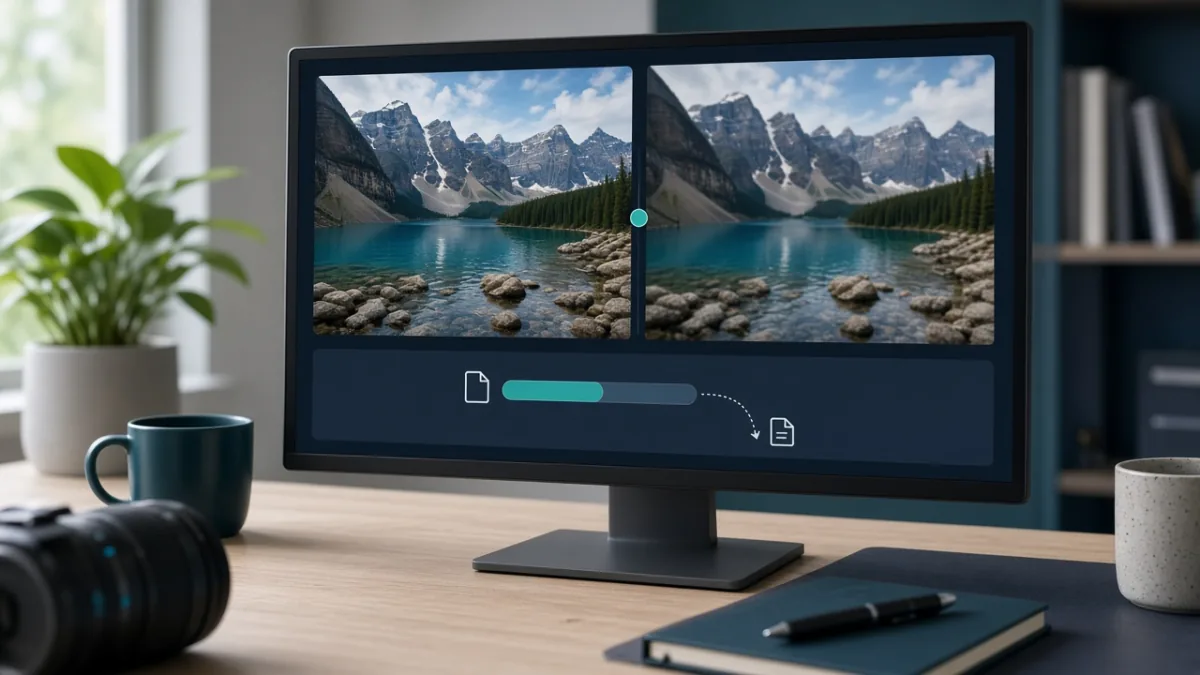
- Inspect edges and fine text at 100% zoom: Use the before/after slider to check faces, small lettering, and smooth sky gradients before downloading.
Is It Safe to Use Free Online Image Compressors for Private Photos?
Most cloud-based image compressors upload your picture to a remote server, process it, and store it temporarily (anywhere from 1 to 48 hours) so you can download the result. While reputable services use HTTPS encryption in transit, you should never upload passport scans, national ID cards, medical records, banking screenshots, or private family photos to a remote cloud server.
How to Troubleshoot Common Image Compression Problems
Frequently Asked Questions
How can I compress an image online without losing visible quality?
First resize the image's pixel dimensions to match the size it will actually be displayed at (for example, 1200 px wide instead of 4000 px), then apply a single compression pass at 75–85% quality in WebP or JPG, or use smart PNG quantization. Always start from your original file rather than re-compressing an already compressed image.
Is WebP better than JPG and PNG?
For modern websites and blogs, yes—WebP typically produces files 25% to 35% smaller than JPG at equivalent visual quality and also supports transparent backgrounds like PNG. However, for strict online application forms or older software, JPG and PNG remain the safest choices for universal compatibility.
Is it safe to compress passport photos or ID cards on a free website?
Do not upload identity documents, medical images, or private photos to cloud compressors that send files to remote servers. Instead, use an offline desktop app (like macOS Preview or Windows Photos) or Squoosh.app, which processes images locally inside your browser without uploading them.
Why is my compressed image still too large?
Usually because the pixel resolution is still massive (such as a 12-megapixel camera photo) or because a photograph was saved in PNG format. Reduce the width and height dimensions first and switch photographic images from PNG to JPG or WebP.
Does compressing images really improve website loading speed?
Yes. Unoptimized images are often the heaviest part of a web page. Resizing images to their display dimensions and serving them in WebP format directly improves Largest Contentful Paint (LCP) and saves mobile data for visitors.
When should I use PNG instead of JPG?
Use PNG when you need a transparent background (such as a company logo or icon) or when the image contains sharp interface screenshots, small text, or flat-color diagrams that would look smudged in JPG.
Sources
Tags: File FormatsHow-ToStep-by-StepPrivacy Tips