


QR Code Generator Guide: How to Create, Test & Scan QR Codes Safely
A QR code generator turns a website URL, Wi-Fi login, contact card, or hosted file link into a square pattern that any smartphone camera can read in a second. By choosing a static QR code for permanent links, keeping strong dark-on-light contrast with a clean margin, and testing the code on two phones before printing, you can create reliable QR codes that never expire unexpectedly.
On this page5
Static vs. Dynamic QR Codes: Which Should You Choose?
The biggest mistake beginners make with free QR code generators is accidentally creating a 'trial dynamic code' that stops working two weeks after they print 500 flyers. A static QR code encodes your data directly into the black-and-white squares, while a dynamic QR code routes scanners through the generator provider's redirect server:
| Feature | Static QR Code | Dynamic QR Code | What to Watch Out For |
|---|---|---|---|
| Edit destination after printing | No — changing the link requires generating a new code | Yes — update the target URL inside the provider dashboard | Only use dynamic if the destination link will genuinely change |
| Scan analytics & tracking | No built-in provider tracking (website analytics still work) | Includes scan counts, time, and device type on supported plans | You can track static QR visits for free using standard UTM parameters |
| Cost & account requirement | 100% free with no ongoing subscription required | Often requires a paid plan after a short free trial | Avoid generators that force account sign-up just to download a static PNG |
| Expiration risk | Never expires as long as your destination webpage stays online | Breaks immediately if your trial ends or the redirect service closes | Always test whether the encoded URL is your direct domain or a short-link redirect |
| Best use cases | Permanent websites, guest Wi-Fi signs, business card vCards, plain text | Seasonal menus, rotating event promos, temporary marketing campaigns | Default to Static QR codes for 90% of everyday personal and small-business needs |
How to Create 5 Common Types of QR Codes Step by Step
Whether you use the built-in QR generator in Chrome/Edge, Canva's QR tool, or a dedicated web generator, follow these exact rules for each format:
- Website URL QR code: Copy the full destination address including https://, paste it into the URL tab, and download PNG for screens or SVG/PDF for print. Always link to a permanent page rather than a temporary preview URL.
- Guest Wi-Fi QR code: Select Wi-Fi, enter your exact network name (SSID), choose the security type (usually WPA/WPA2/WPA3), and type the password. Print and display it only inside your home or office where intended guests can see it.
- Contact Card (vCard) QR code: Select vCard or Contact and include only the work phone number, email, and website you want on a public business card—remember that printed static vCards cannot be edited later.
- PDF or Document QR code: A QR code links to an online file rather than storing a multi-megabyte PDF inside the squares. Upload your PDF to Google Drive or your website, set link access to 'Anyone with the link can view,' paste that URL into the generator, and test it in an incognito window.
- Plain Text QR code: Choose Text for short offline notes, serial numbers, or equipment labels. Keep the text brief so the square modules remain large and easy to scan, and never encode passwords or recovery keys.
5 Print & Design Rules So Your QR Code Scans Every Time
Over-styled QR codes fail under dim restaurant lighting or older phone cameras. Run through this design checklist before sending any flyer, business card, or poster to print:
How to Scan QR Codes & Avoid 'Quishing' Scams
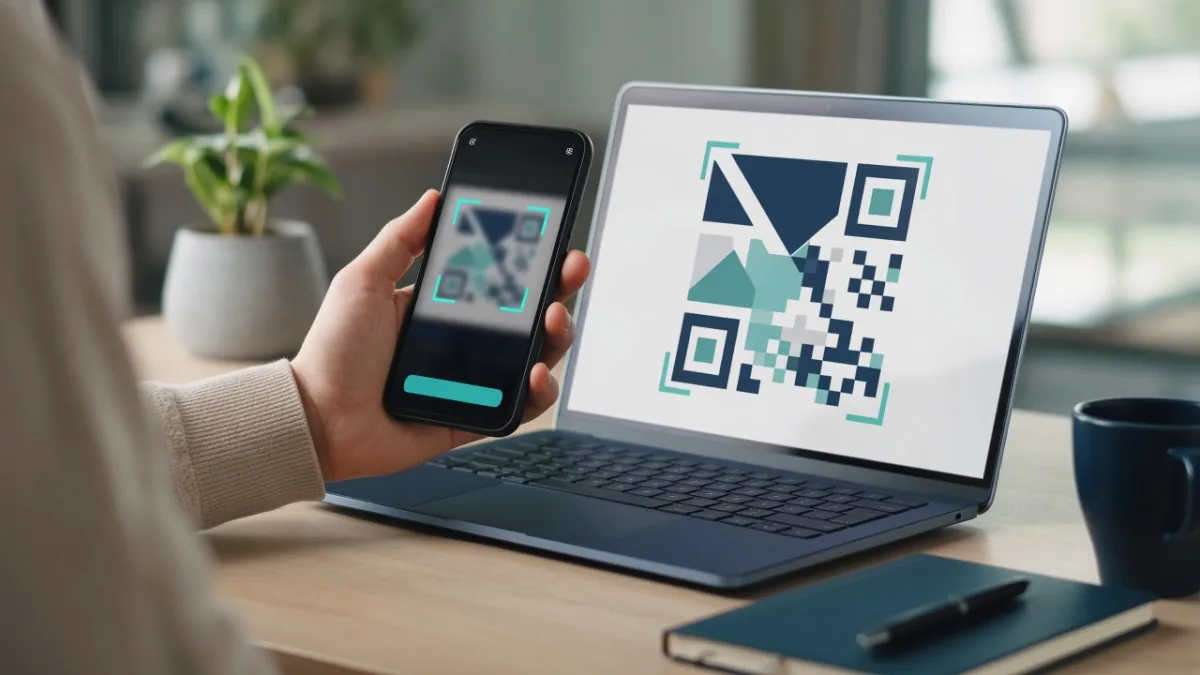
You do not need to install third-party QR scanner apps (many of which are packed with intrusive ads). On both iPhone and Android, simply open the built-in Camera app, point it steadily at the code, and read the URL preview banner that pops up on screen.
How to Fix Common QR Code Problems
| Problem | Most Likely Cause | Fast Fix |
|---|---|---|
| Phone camera refuses to scan the code | Low contrast, inverted colors, missing border margin, or blurry compression | Switch to dark squares on a solid white background, add a clear border, and export as sharp PNG or SVG |
| Printed QR code suddenly says 'Link Expired' or 'Inactive' | Generator created a dynamic redirect code whose free trial ended | Replace it with a true Static QR code that encodes your direct https:// URL without a middleman |
| Scanning a PDF QR code asks visitors to sign in | Cloud file sharing permission is still set to 'Restricted' | Change the Google Drive or cloud file permission to 'Anyone with the link can view' and test in Private/Incognito mode |
Frequently Asked Questions
Are free QR code generators safe to use?
Yes, as long as you choose a generator that creates true static QR codes without forcing an account sign-up or routing your visitors through a paid redirect link, and you never encode private passwords or confidential documents.
Do QR codes expire?
Static QR codes never expire—they encode the destination address directly into the pattern and will work forever as long as your webpage stays online. Dynamic QR codes rely on a provider's redirect server and can stop working if a free trial or subscription ends.
Can I create a QR code for my home or office Wi-Fi?
Yes. Select the Wi-Fi option in a QR code generator, enter your network name (SSID), encryption type (WPA/WPA2/WPA3), and password. When guests scan the code with their phone camera, they can join the network automatically without typing the password.
How do I create a QR code for a PDF file?
Upload the PDF to your website or a trusted cloud drive such as Google Drive, set the sharing permission to 'Anyone with the link can view,' copy that share URL, and paste it into a static URL QR code generator. Test the code on a phone that is not signed in to your account.
How can I tell if a QR code is a scam before opening it?
Point your built-in iPhone or Android camera at the code and read the URL preview banner before tapping it. Watch for misspelled brand names, strange domains, or physical stickers pasted over legitimate parking or menu signs.
Should I use a static or dynamic QR code for printing?
Use a static QR code whenever the destination URL, Wi-Fi login, or contact card will stay the same—or point the static code to a page on your own website that you control. Only use a dynamic QR code if you need to change the destination URL later and are willing to maintain an active account with the provider.
Sources
Tags: File FormatsHow-ToStep-by-StepOnline Learning