


How to Convert Images to PDF
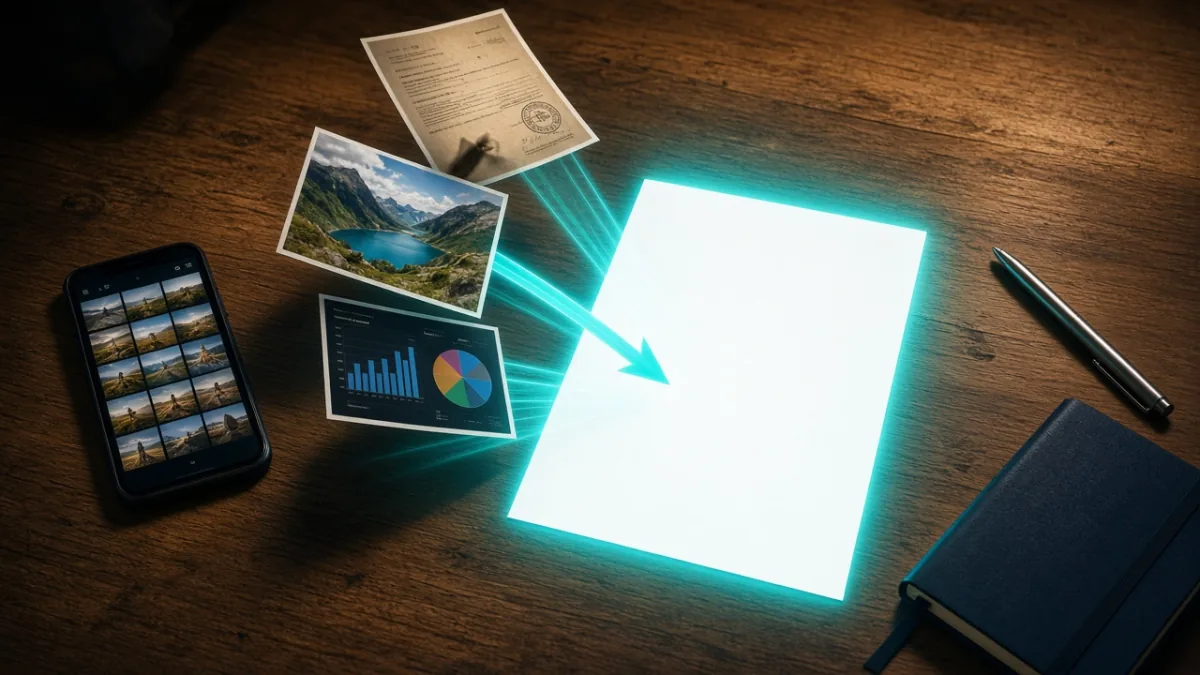
To convert images to PDF, choose the photos, put them in the right order, select suitable page settings, and export them as one document. You can do this with built-in phone or computer features, or use our free Image to PDF Converter in your browser when you want to arrange photos and create a compact PDF.
On this page21
- What is a PDF, and why use it for photos?
- Which image formats can you convert?
- How to convert images to PDF in 5 steps
- How can you convert pictures to PDF on a phone?
- How do you convert images to PDF on a computer?
- Is a browser-based image to PDF tool a good option?
- How do page order and image quality affect the result?
- How can you keep the PDF file size small?
- How do you keep images and PDF files private?
- What are common mistakes when converting images to PDF?
- Quick recap: what should you do before sending the PDF?
- Key takeaways
- FAQ: how to convert images to PDF
- Can I convert multiple images into one PDF?
- How do I convert a picture to PDF on my phone?
- Is JPG or PNG better for a PDF?
- Why is my PDF file size too big?
- Can I convert HEIC photos to PDF?
- Is it safe to use an online image to PDF converter?
- How can I combine existing PDFs with converted images?
- Will converting an image to PDF improve its quality?
What is a PDF, and why use it for photos?
A PDF is a document format designed to keep pages together in a consistent file. Turning photos into a PDF is useful when an application, school, employer, or office asks for one document rather than several separate image files.
For example, you might need to submit identity-document scans, combine class notes, send signed paperwork, or keep receipts together. A PDF lets the recipient open the pages as one file and follow the order you selected. It can also make a collection of photos easier to store and share than a folder of separate images.
The source images still matter. A clear, well-lit photo is easier to read than a dark, blurry, or sharply angled one. Conversion cannot recreate missing details, so check the text, page direction, and edges before exporting.
Our Image to PDF Converter is designed for a simple browser-based workflow: arrange photos, choose page settings, and create a compact PDF. This guide covers preparation, conversion on different devices, and file privacy.
Which image formats can you convert?
The format describes how an image is stored. It helps determine which device or workflow can open it and what kind of image information it preserves.
| Format | What it means | Best for |
|---|---|---|
| JPG / JPEG | A widely used image format that commonly uses compression to keep photo files smaller. | Phone photos, scanned pages, and general-purpose pictures. |
| PNG | An image format that can preserve transparency and sharp graphic details. | Screenshots, diagrams, graphics, and images with text or transparent areas. |
| HEIC / HEIF | Efficient image formats used by some phones and cameras. Compatibility can vary between devices and tools. | Photos captured on devices that save images in this format, when the receiving workflow accepts it. |
| A document format that can hold pages together in one file. | Applications, records, forms, and multi-page submissions. |
A JPG image is often suitable for a photographed page. PNG may be more appropriate for a screenshot or diagram with fine lines. Our Image to PDF Converter accepts JPG, PNG, WebP, GIF, BMP, and HEIC when the browser can decode the file. If a HEIC photo fails, convert it with the HEIC to JPG Converter first, then add the JPG to the PDF.
How to convert images to PDF in 5 steps
The same basic process works with most phone, computer, and browser-based methods. Prepare the images before you export so you do not have to rebuild the document later.
- Choose the images. Select the photos or scans that belong in the document. Remove accidental duplicates and check that each page is readable.
- Put them in order. Decide which page should come first, then arrange the remaining images in reading order. Rename the files if that makes the order easier to manage.
- Check page settings. Choose a page size and orientation that suit the content. A portrait page is usually convenient for letters and forms; landscape may suit a wide receipt, chart, or certificate.
- Convert and review. Create the PDF, then open it and inspect every page. Look for rotated photos, cropped edges, missing pages, or text that is too small.
- Save and share carefully. Give the file a clear name, save it somewhere you can find, and share it only with the intended recipient.
For an official application, follow the recipient's instructions for file type, page order, legibility, and naming. Requirements vary by organisation.
How can you convert pictures to PDF on a phone?
A phone is often the quickest option when the pictures are already in your camera roll or were captured with the camera. Many phones include a built-in print, share, scan, or document-export function that can create a PDF, although the exact options differ by device and operating-system version.
Start by selecting the images you want to include. If your phone provides a document or print-to-PDF option, use it to arrange the pages and save the result as a PDF. Review the preview before saving. Pay particular attention to the page order: some selection screens arrange images by capture time, while others follow the order in which you tap them.
For a browser-based route, open our Image to PDF Converter, select the photos, arrange them, choose page settings, and create the PDF. This can be useful when you want to control the sequence of several images in one place.
Before sending the document, open the saved PDF rather than relying only on the preview. Confirm that all pages are present and readable. If a form or application has a file-size limit, check the final file against that requirement before uploading it.
How do you convert images to PDF on a computer?
A computer is useful when the pictures are already stored in folders, when you need a keyboard and a larger preview, or when you are preparing a work or university submission. Built-in operating-system features may let you select images and use a print or export function to create a PDF; names and steps vary by system.
First, copy the chosen images into one folder. Give them filenames that make the intended order clear, such as 01-cover, 02-page, and 03-receipt. Select the images in that order if the built-in feature supports it. Then choose a print-to-PDF or export-to-PDF option where available.
Check the page size, orientation, margins, and scaling in the preview. A photo that fills the entire page may look large, but it can crop an important edge. A page with wide margins may preserve the full image but make small text harder to read. Choose the layout that keeps the document complete and legible.
After exporting, open the PDF and scroll through the whole file. Do not assume the first-page preview proves that all later pages converted correctly. If you need to combine existing PDF files as well as images, our Merge & Split PDF Suite can merge and split PDFs, with processing performed locally.
Is a browser-based image to PDF tool a good option?
A browser-based tool can be convenient when you want to arrange images, choose page settings, and create a PDF without installing a separate desktop program. It may also reduce the need to send files to a remote server when the file processing takes place in the browser, but you should still review the tool's privacy information before using it.
Our Image to PDF Converter lets you arrange photos, choose page settings, and create a compact PDF in the browser. A simple workflow is to open the tool, add the selected images, arrange the pages, choose the page settings, and create the document. Open the resulting PDF and check it before you submit or share it.
The fact that a tool runs in a browser does not remove the need for caution. Check the tool's privacy information, use a trusted device, and avoid processing sensitive files with tools whose handling practices you do not understand. The privacy section below gives you a practical checklist.
How do page order and image quality affect the result?
Page order determines how the reader moves through your document, while image quality determines how easy it is to read. Both should be checked before you send the PDF.
For a multi-page application, put the pages in the sequence requested by the recipient. If no sequence is specified, use a natural reading order: cover or overview first, supporting pages next, and any additional material last. For receipts, group them in a way that makes the dates or categories easy to follow.
Resolution refers to the amount of image detail available. A high-resolution image can preserve fine text and lines, but it may also contribute to a larger file. A low-resolution image may create a smaller PDF while making small print difficult to read. Avoid enlarging a small image just to fill a page; upscaling does not restore original detail.
Use a consistent orientation where possible. Rotate landscape photos when the content is wide, and avoid mixing page sizes unless the document needs it. Always inspect the PDF at a normal reading size and zoom in on small text. If you cannot read a page comfortably on screen, the recipient may struggle too.
How can you keep the PDF file size small?
File size is the amount of storage space a file uses. Compression reduces the amount of data stored in a file, but some methods can also reduce image detail. The goal is not simply to make the smallest possible PDF; it is to meet the receiving system's limit while keeping every page readable.
Start with images that are no larger than necessary for the intended use. Avoid adding several copies of the same photo, and remove blank or accidental pages. Choose a sensible page size and do not use unnecessarily large images for small content. Review the final PDF after any compression step to make sure text and signatures remain clear.
If your PDF file size is too big, our PDF Compress & Unlock tool can make PDFs smaller. The same tool can remove a password you already know. Do not treat this as a way to access a file without permission; only work with documents you are authorised to handle.
If the document is still too large for a submission portal, check the portal's stated limit and allowed file types. You may need to create a more efficient scan or divide the material only if the receiving organisation permits multiple files. Never reduce the image quality so far that essential text becomes unreadable.
How do you keep images and PDF files private?
A photo can contain more than the visible subject. It may show personal details, document numbers, signatures, or hidden information such as location metadata. Before using an online tool, consider what the file contains and whether you trust the tool's privacy practices.
| Privacy check | What to do before converting |
|---|---|
| Identify sensitive content | Check whether the images contain IDs, contracts, bank papers, medical documents, addresses, or signatures. |
| Review the tool's handling information | Read the privacy information and understand how the tool processes files before using it. |
| Prefer an appropriate workflow | For highly sensitive documents, use a trusted device and a workflow approved by your organisation or relevant authority. |
| Remove unnecessary location data | If location metadata is a concern, use our EXIF Remover & ID Watermarker to remove hidden GPS data and add a watermark to ID photos. |
| Hide details carefully | If you need to cover sensitive content in a PDF, our PDF Redactor burns black boxes into new page images while the original file stays on disk. |
| Share selectively | Send the finished document only to the intended recipient and avoid public links when they are not needed. |
Browser-based processing can reduce the need to send a file to a server, but it is not a universal security guarantee. Check the specific tool's privacy information. Do not use a tool you do not trust for IDs, contracts, bank documents, or medical papers. If a document is part of your work, follow your organisation's document-handling rules.
What are common mistakes when converting images to PDF?
Most conversion problems come from image preparation or from skipping the final review. A short check before sharing can prevent a confusing or incomplete document.
If an image will not convert, check its format first. A HEIC or HEIF photo can often be added directly. If decoding fails, convert it to JPG first, then add it to the PDF. If an existing PDF needs to be combined with the new document, use a PDF merge workflow rather than turning that PDF into images.
Quick recap: what should you do before sending the PDF?
The reliable process is simple: prepare readable images, arrange them, choose page settings, export, and inspect the final file. Use the device or browser workflow that fits your task, but always check the document before sharing it.
For a school submission, confirm that every page is present and that the file meets the submission instructions. For business paperwork, check whether sensitive details should be covered or whether the document must be handled through an approved process. For personal records, choose a clear filename and keep the saved PDF in an appropriate location.
Key takeaways
Ready to turn your photos into one document? Open our Image to PDF Converter, arrange your pages, and review the finished PDF before sharing it.
FAQ: how to convert images to PDF
Can I convert multiple images into one PDF?
Yes. Select all the images you need, arrange them in the intended page order, choose suitable page settings, and export them as one PDF. Open the finished file and check that every image appears on the correct page before you share it.
How do I convert a picture to PDF on my phone?
You can use a built-in print, share, scan, or export feature if your phone provides one. You can also use a browser-based converter: add the photos, arrange them, choose page settings, and create the PDF. The exact built-in options vary by device.
Is JPG or PNG better for a PDF?
Neither format is always better. JPG is commonly used for photographs, while PNG can be useful for screenshots, diagrams, and graphics with sharp lines or transparency. Choose the source format that preserves the details your document needs, then inspect the exported PDF.
Why is my PDF file size too big?
A PDF can become large when it contains many high-resolution photos or unnecessary pages. Remove duplicates, use images sized appropriately for the page, and consider a compression step. After reducing the file size, zoom in and confirm that small text and important details remain readable.
Can I convert HEIC photos to PDF?
The Image to PDF Converter accepts HEIC and HEIF when decoding succeeds. If a photo fails to open, convert it to JPG first, then add it to the PDF and check the pages before sending the document.
Is it safe to use an online image to PDF converter?
It depends on the tool and the files you are processing. Read the privacy information and understand how files are handled. For IDs, contracts, bank documents, or medical papers, use only a workflow you trust and that meets any relevant workplace or institutional rules.
How can I combine existing PDFs with converted images?
First convert the images into a PDF. Then use a PDF merge tool to combine that file with the other PDFs in the required order.
Will converting an image to PDF improve its quality?
No. Conversion changes the file format and page structure; it does not recreate details that were absent from the original image. Start with a clear photo or scan, avoid excessive resizing or compression, and review the final PDF at a readable zoom level.
Frequently Asked Questions
Can I convert multiple images into one PDF?
Yes. Select all the images you need, arrange them in the intended page order, choose suitable page settings, and export them as one PDF. Open the finished file and check that every image appears on the correct page before you share it.
How do I convert a picture to PDF on my phone?
You can use a built-in print, share, scan, or export feature if your phone provides one. You can also use a browser-based converter: add the photos, arrange them, choose page settings, and create the PDF. The exact built-in options vary by device.
Is JPG or PNG better for a PDF?
Neither format is always better. JPG is commonly used for photographs, while PNG can be useful for screenshots, diagrams, and graphics with sharp lines or transparency. Choose the source format that preserves the details your document needs, then inspect the exported PDF.
Why is my PDF file size too big?
A PDF can become large when it contains many high-resolution photos or unnecessary pages. Remove duplicates, use images sized appropriately for the page, and consider a compression step. After reducing the file size, zoom in and confirm that small text and important details remain readable.
Can I convert HEIC photos to PDF?
The Image to PDF Converter accepts HEIC and HEIF when decoding succeeds. If a photo fails to open, convert it to JPG first, then add it to the PDF and check the pages before sending the document.
Is it safe to use an online image to PDF converter?
It depends on the tool and the files you are processing. Read the privacy information and understand how files are handled. For IDs, contracts, bank documents, or medical papers, use only a workflow you trust and that meets any relevant workplace or institutional rules.
How can I combine existing PDFs with converted images?
First convert the images into a PDF. Then use a PDF merge tool to combine that file with the other PDFs in the required order.
Will converting an image to PDF improve its quality?
No. Conversion changes the file format and page structure; it does not recreate details that were absent from the original image. Start with a clear photo or scan, avoid excessive resizing or compression, and review the final PDF at a readable zoom level.
Sources
Tags: File FormatsHow-ToStep-by-StepPrivacy Tips